
Translated from the original Traditional Chinese post. Read the Chinese original →
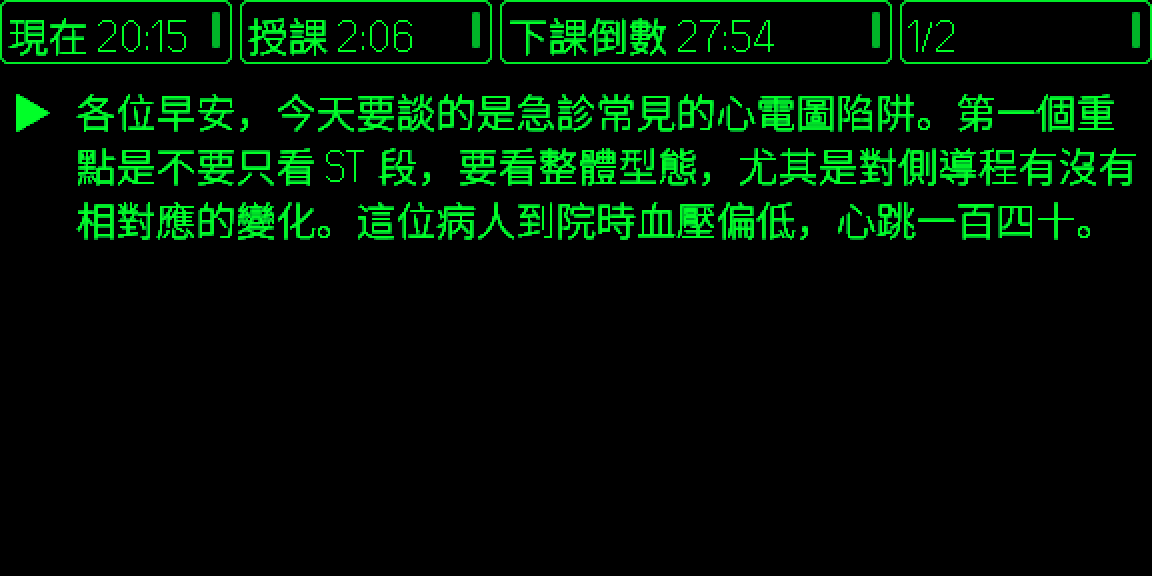
I've been putting together an ACLS lecture script lately: 120 slides, nearly 30,000 characters, all of it in Keynote's speaker notes. When I teach, I keep my laptop on the lectern and turn my head to glance at what comes next after every section.
Turning your head is a tiny movement. It's so small that the audience may not be able to say what feels off, but every single time it cuts my connection to the room. Looking down at the script is even more obvious. The moment you look down, everyone knows you're reading.
I've been wearing the Even Realities G2 for a while now. Its text is projected onto the lenses, and from the inside it looks like a subtitle floating two meters in front of you, without blocking anyone's face. The first time I put it on, I thought: if the script showed up in that spot, the head turn wouldn't have to exist.
The Official Teleprompter Exists, but It Doesn't Know Which Slide I'm On
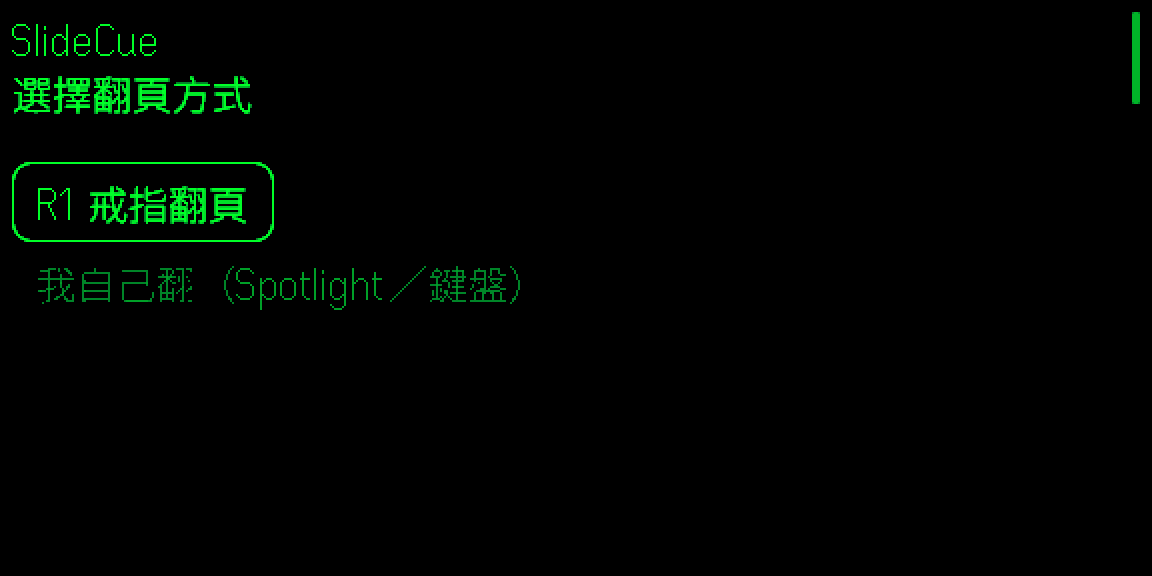
Even has a built-in Teleprompt. You can throw a whole block of text onto the lenses, and it scrolls automatically at your speaking pace, or you advance it by hand with the R1 ring. It's a first-party feature, it's free, it doesn't need a computer, and it's well made.
The problem is that it runs on a separate track from your slides. You paste the script in first, and then on stage you're managing two things at once: where the slides are, and where the script has scrolled to. Get out of sync once (skip a slide on the spot, go back to add a sentence) and you spend the rest of the talk hunting for your place.
And that script already lives in Keynote's speaker notes. What I actually want comes down to one sentence: whichever slide I'm on, show that slide's notes.
I surveyed what's out there. Someone has built something similar for Google Slides (powerslides), and there's an offline teleprompter on Android (whisprompt), but I couldn't find anything at the time that ties page turns to script lines. So I built it myself.
The Sticking Point: The Glasses Can't See My Computer
The reason this took a week instead of one evening comes down to architecture.
Even Hub plugins run inside the phone. The phone doesn't know which slide Keynote is on on my laptop, and the glasses certainly don't. The only thing that can answer "which slide is it on right now" is a program running on that Mac.
So SlideCue is a three-leg relay:
This design has a cost. Users have to install one more free program on their own Mac, and I wrote that honestly into the store description. It isn't laziness; there's just no shortcut on this route. It later became what worried me most before submitting for review, because I wasn't sure the official side would accept a plugin that needs a companion program on a computer.
The good news is that the whole script is saved to the phone the moment it connects. So if the Wi-Fi drops mid-talk, the text on the lenses doesn't vanish, and you can still push forward with gestures yourself.
A Week of Progress
| Date | What got done |
|---|---|
| August 20 | Feasibility check first: would Keynote report the slide number honestly, and could the R1 ring flip the slides in the other direction? I only started building once all three passed |
| August 21 | Saw my own script on the glasses for the first time. Got voice follow working that same evening |
| August 22 | Packaged it as a Mac app a normal person can double-click to install, wrote the help site, and weighed whether to support PowerPoint and Windows |
| August 25 | Submitted to Even Hub review. Rejected that same evening |
| August 26 | Fixed and resubmitted, approved in the morning, publicly listed by noon |
None of the things that actually ate my time were the ones I expected at the start.
The Problems That Really Got Me
The Screen Kept Jittering, and I Wasn't the One Drawing It
On the real device, the moment I swiped the temple, the whole block of text bounced up and down. I went after it on the assumption that I was redrawing too often, and spent three rounds on it: fixing the number of lines sent each time, merging consecutive redraws, and lowering the update frequency of the time cells. All three were real problems, and each did improve things a little, but the jitter was still there.
The break came from a pair of numbers that didn't add up: the screen kept moving, yet I was only redrawing twice in 20 seconds. That meant whatever was moving wasn't me. It was the glasses' firmware scrolling that text box on its own, without going through my program at all.
The fix was small: swap the box that receives gestures for one whose content never changes and has no scrollable space, so even if the firmware wants to scroll, there's nothing to scroll.
This became one of my rules of thumb: when "the screen is moving" and "how many times I made it move" don't match, first suspect that it isn't you moving it.
Text Vanishes From the Lenses Out of Thin Air, With No Error
The glasses' firmware font isn't a complete set. When it hits a character it doesn't have, it doesn't throw an error and it doesn't show a replacement glyph. It quietly skips it, and the character is just gone.
The ones I confirmed missing include ▸, ✕, and the Chinese character 稿 (script). It isn't all-or-nothing for Chinese: common characters are there, less common ones may not be. So the page indicator for the script, which I had planned to write as 稿 1/2 (that is, "script 1/2"), ended up as (1/2).
My habit now is that any new symbol headed for the lenses gets a test page pushed up first so I can check it with my own eyes. Don't trust that the code running means you can see it.
Voice Follow Understood What I Was Reading, but Couldn't Match It to the Script
Voice follow is the feature that moves the arrow down by itself. It uses the microphone on the glasses (when you give a talk you walk around, far from the laptop, but the glasses are always on your face).
Here's what the first version recognized:
第二,第一章正常不代表没事,20分钟后再做一章。
And here's what I actually read:
第二,第一張正常不代表沒事,二十分鐘後再做一張。
The meaning is nearly right, but the simplified characters, homophone errors and number formats are all different.
When the program compared it against the script, the score was only 0.353, barely touching the threshold, so the arrow sometimes moved and sometimes didn't.
The eventual fix had nothing to do with model size; it was a change of idea. I already have the whole script. All the machine has to do is find which line I'm on within text it already knows. So I fed the entire script to the recognition engine as its prompt, and it immediately converted the simplified characters to traditional and corrected the wrong ones by itself. The match score jumped to 0.882.
That idea came with an unexpected bonus: since it's only alignment, the model doesn't need to be big. In testing, the 141MB small model and the 1.5GB large model got exactly the same alignment score, and the small one is much faster. I went with the small one, and it only has to be downloaded once.
The whole path and how the decision is made are quicker to show in a picture:
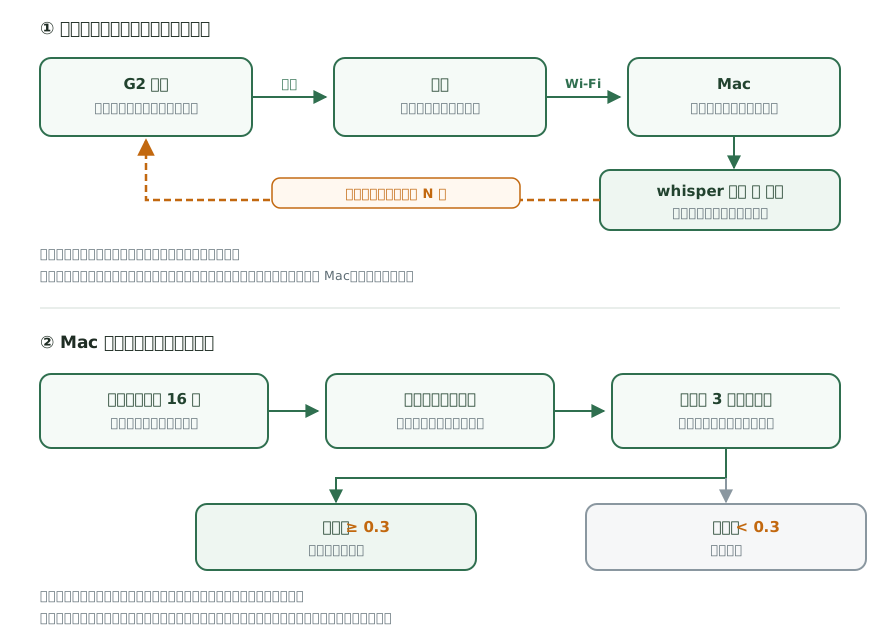
Two things in the picture are worth calling out. First, the glasses never know what I'm saying; all they receive is a single number, so the lens side doesn't have to carry a speech model, and recognition doesn't slow it down or drain its battery. Second, the matching is fuzzy, not word for word, because speakers improvise a few words anyway and recognition is guaranteed to mishear a few; if it demanded an exact match, the arrow would probably never move all session.
After Installing the Store Version, It Couldn't Find My Computer at All
During development, the plugin on the glasses loaded straight from a server running on my Mac. So all it had to do was look back at which address it came from, and that told it where my computer was, with no setup at all. After listing, that route was gone: the plugin is now downloaded from Even's servers, so the address it sees when it looks back is the phone itself, and it can never reach that Mac.
Worse, it failed silently: no crash, no error, just a blank screen. If I hadn't thought of this ahead of time, the first batch of users would have installed it and concluded it was broken.
What I do now is have the computer side display a three-digit connection code. You enter it once on the phone, it remembers it from then on, and you only redo it when you change venues.
On Reconnect, It Killed Itself
After a disconnect, the program reconnects automatically. To be fast, it fires connection attempts at several candidate addresses at once and uses whichever answers first. The problem was how long to wait before calling it a failure, which I set to 2.5 seconds. But the reconnect timer doesn't care whether the previous round has finished; when the time is up it launches another round. So the first round is still waiting, the second has already started, the third follows, and the connections pile up round after round. In testing, it built up to 19 connections in 30 seconds, and the computer side dutifully sends the entire script to every device that connects, which amounts to attacking itself and knocking itself out cold.
You never see this kind of problem in normal development, because the network is fine while you develop. But it's guaranteed to happen on stage, because the network on stage is the least stable.
My Script Was Running Around Naked on the Venue Wi-Fi
This is the thing in this whole project I least want to admit, and also the one I most need to write down.
At first, the computer side sent the whole script to any device that connected, with no authentication whatsoever. I tested it: connecting from the same network, with no steps at all, I received the complete 120 slides and 29,247 characters, and the first sentence was the opening of the ACLS course. And my script contains clinical cases.
The Wi-Fi in hospitals, conferences and hotels is all called a local area network, but hundreds of strangers are on it at the same time. "LAN-only" has never meant safe.
For now, the handling is that it serves only the first device that connects, on by default, and refuses everyone else. That's only a mitigation. The real fix is pairing plus end-to-end encryption, and that isn't finished. So I stated this limitation plainly in the GitHub README and on the store page, without hiding it.
How I Split the Work With AI
From the first line to going live, this project was done by me and Claude Code together. But the quality of "together" depends on a few rules I've slowly settled on over the past year.
Don't Accept Inference, Only Measurement
One question stalled me for a long time before listing. The official docs said network access has to be declared in an allowlist, and what I need to connect to is a floating address on the user's home computer, which can't possibly be written into a list. Going by the docs, this architecture was a dead end, and I'd have to set up a separate relay server.
I didn't accept that inference. I asked for a test on a real device. The result: the allowlist isn't actually enforced at runtime right now, and connections work perfectly. One test saved me a week of useless engineering.
Fail the Same Way Twice, Switch Routes
When I tried to turn the computer side into a single executable, I used the official packaging method and failed twice in a row. The third time I didn't try again. I made it a regular Mac app instead, and it turned out not only faster but more like what belongs on a Mac: the user drags it into the Applications folder and that's it, with no developer tools to install.
"Done" Means a Check I Didn't Run Myself Passed
An AI saying "finished" doesn't count as finished. The acceptance for this project was 92 automated tests, plus me personally standing in a room wearing the glasses and actually flipping slides. That's how I caught the jitter problem: every test passed, but my eyes could see it shaking.
When You Need Perspective, Send Five Out in Different Directions
When I was deciding whether to support PowerPoint, Windows and Google Slides, I sent five AIs out at once to investigate separately, each reporting back an assessment. The combined conclusion had little to do with which platform to do first. It was a colder sentence: the number of people who can actually use this right now is zero, because the connection address was still hard-coded to my own computer.
So I reshuffled the whole order: first make it installable for other people, then talk about who to support. The store listing assets deliberately did not go first, because there's no point listing something that others can install but can't use.
Submission: Rejected Once, and the Reason Was the Screenshots
I submitted on the evening of August 25 and was rejected that same night. The reason was a single sentence: the screenshots didn't meet the standard, retake them with the latest simulator.
The cause is a little funny: I have two versions of the simulator on my computer, and the command was picking up the old one. The old version produces an opaque black background, and the new one produces a transparent background. The G2 is a see-through lens, and the store overlays your lens image on a photo of a real scene, so a black background laid on top turns into a solid block that obviously doesn't look real.
I retook them and resubmitted. It was approved at 11 a.m. the next morning and publicly listed at noon. From rejection to listing was under 12 hours in total.
Where to Install It
SlideCue is publicly listed in the Even Hub store, and it's free. It has two parts, and you need to install both for it to work.
| Where it goes | How to get it | |
|---|---|---|
| Phone plugin | The Even Realities app on your phone | Open the app and go into Even Hub (the plugin store), search for SlideCue and install it; once installed it shows up under My Plugins |
| Computer program | Your Mac | Download it from slidecue.pages.dev, or grab SlideCue.zip directly (about 72 MB) |
There are two things to watch for the first time you launch the computer side:
- Right-click and choose Open. If you just double-click, macOS will block it. That's because I haven't bought an Apple developer signature; it doesn't mean anything is wrong with the program.
- It will ask for permission to control Keynote, and you need to click OK. If you don't allow it, it can't read your script.
After that, a three-digit connection code pops up on the computer. Enter it once in SlideCue on your phone, open Keynote and press play, and the script is on your lenses. From then on, the computer side starts itself in the background at every boot, and you don't have to think about it again.
The phone and the Mac need to be on the same Wi-Fi. If the venue has no network, turning on your phone's hotspot and connecting the Mac to it works too. That's how I use it myself these days, and it also takes care of the naked-script problem I mentioned above.
The full setup instructions, what every cell on the lenses means, and the FAQ are all on the help page:
- Help and download: https://slidecue.pages.dev/
- Source code: https://github.com/agoodbear/slidecue
What It Still Can't Do
Saving this for the end, because it matters more than the feature list:
- It only supports Keynote on Mac. I've evaluated PowerPoint and Windows: doable, but it would take a fair amount of work, and I haven't started.
- The computer side still has no real authentication. For now it relies on serving only the first device that connects, so use a phone hotspot for sensitive scripts.
- Voice follow hasn't actually been used on stage yet. In a room test the delay was about 1.4 seconds, a fifth of a line behind, and it felt like it keeps up, but that doesn't mean it keeps up in a classroom with echo, air-conditioner noise and audience members coughing.
I'll wear it on stage for my next class. Only after using it for a real round will I know what's still missing.



Thoughts on this case? Leave a comment, a like, or a reaction below.
comments powered by Disqus