
Translated from the original Traditional Chinese post. Read the Chinese original →
How to Create Static Site Posts with Hugo
Prerequisites
First, a few things need to be in place:
- Install Xcode on your Mac (Windows probably doesn't need it? I don't know about that)
- Use Homebrew to install Hugo from the Mac Terminal
- Already have an account set up on GitHub
- Install VS code and typora
- Already picked out, from the Hugo theme gallery, the theme you want to use and modify
- Download the theme so you can open and run it on your own computer
Once the above is done, you're mostly there~~~
Next, depending on each theme, customize it to your own needs!!!! (Not required, but for someone with OCD like me, I'm definitely changing things)
Here I have to strongly recommend teacher 古君葳's course Free Site Building with Github! Easily Build Your Personal Brand (in Chinese)

Basic Markdown Format for Posts
- My theme comes from here (all the changes below are based on this theme)
Create a markdown file (*.md) yourself in exampleSite/content/post
The format a normal post needs (as for the very top of each Blog markdown post, use --- and --- as the top and bottom boundaries)
Markdown syntax every post must include:
 1---
 2title: "Syntax for Building a Site with Hugo" # Enter this post's title
 3date: "2024-01-12" # Enter the date
 4description: "Hugo" # No idea at all when this ever shows up
 5featured: true # If set to true, the post is set as a featured post
 6draft: false # If false it's published right away, not run in draft mode
 7toc: true # Auto-generate a TOC
 8featureImage: "/images/HUGO.png" # Sets this post's featured image on the home page
 9thumbnail: "/images/HUGO.png" # Each post's thumbnail lives here (static/images/)
10codeMaxLines: 10 # Override global value for how many lines within a code block before auto-collapsing.
11codeLineNumbers: true # Override global value for showing of line numbers within code block.
12figurePositionShow: true # Override global value for showing the figure label.
13categories:
14  - ECG
15  - Ultrasound
16  - ER Life
17  - Weight Training
18  - Self-Study
19tags:
20  - Hugo Tips
21  - Coding
22  - Hugo Site Building
23---
Then just write the post content below that.
Which Shortcodes Are Supported?
I've listed all the ones I use regularly~~~~
Youtube
Twitter(X)
Google Maps
Xmind Pro
Podcast
IG: currently removed; it can only be used after a convoluted set of steps (spent forever researching it, finally gave up😅)
First, add one line of magic spell to config.toml under exampleSite/config/_default:
1unsafe = true
Adding this line turns on Hugo's ability to run html written inside Markdown. After that, just paste in the embed html code and it runs directly!!!! Sweet~~~
Youtube: Click Share, then click Embed, and the embed code shows up
To embed a Shorts video, just put the code at the end of the Shorts URL after embed/
Twitter: Take the one below as an example
https://x.com/smithECGBlog/status/1745156040159559767?s=20
We have to enter
{ {< tweet user="smithECGBlog" id="1745156040159559767" >} } ➔only then does the twitter post show up
A fascinating electrophysiology case. What is this wide complex tachycardia, and how best to manage it?https://t.co/7pSkYDAoj8 pic.twitter.com/J8GsPMxHju
— Stephen W. Smith (@smithECGBlog) January 10, 2024
Google Maps: Share, then click Embed a map
Xmind Pro: Click Share to get the embed code
I'm sharing one of my own mind maps as an example.
Podcast: Copy the link in Apple Podcasts, search it on the web, and it takes you to the episode's web page; then click Share and you'll see the embed link

You can insert PDF files
What Markdown Text Formats Are There?
Changing font color
Red text ➔ press ``
Bold text ➔ press CMD+B
Underline ➔ press CMD+U
Italic text ➔ press CMD+I
Hyperlink ➔ press CMD+K
~~Strikethrough ~~➔ press Control+Shift+`
Color you can paint with ➔ pressing CMD+Shift+H in Typora doesn't work. = =text= = only highlights text successfully in html, but in markdown you have to type < mark >text < mark > to get the highlight
- The fix➔first highlight the text in typora (CMD+shift+H), then go into VS code, search for the < mark > characters in that post, and replace them with < mark >, and you're done
Marked text➔you can pick using a color picker
Marked text➔you can also pick from a common color chart
You can generate gradient colored text : Generating gradient colored text is very easy to do
Blockquote ➔ press ⌥+CMD+Q
1Remember to set codeLineNumbers: false and it shows an all-black background ➔ type ``` above and below the text (then you can enter which language you want, e.g. markdown)
Tables (filled background color)
You can write some key points here
You can write some key points here
You can write some key points here
You can write some key points here
- You can write some key points here
- You can write some key points here
1You can write some key points here
You can type tables directly
| Cell one | Cell two | Cell three |
|---|---|---|
| 1 | 2 | 3 |
You can cite articles➔let's see how it looks with an example
Dr. Smith says the 4 variable formula can be applied to the DDx between Subtle Ant.STEMI and early repolarization 1
Ordered list (after typing 1. you need a space)➔can be indented
- Test
- Test
- Test
Unordered list (after typing - add a space)➔can be indented
- Test
- Test
- Test
Other: superscript, subscript
H2O
Xn + Yn = Zn
Checkbox
uncheck
check
Typora's common keyboard shortcuts

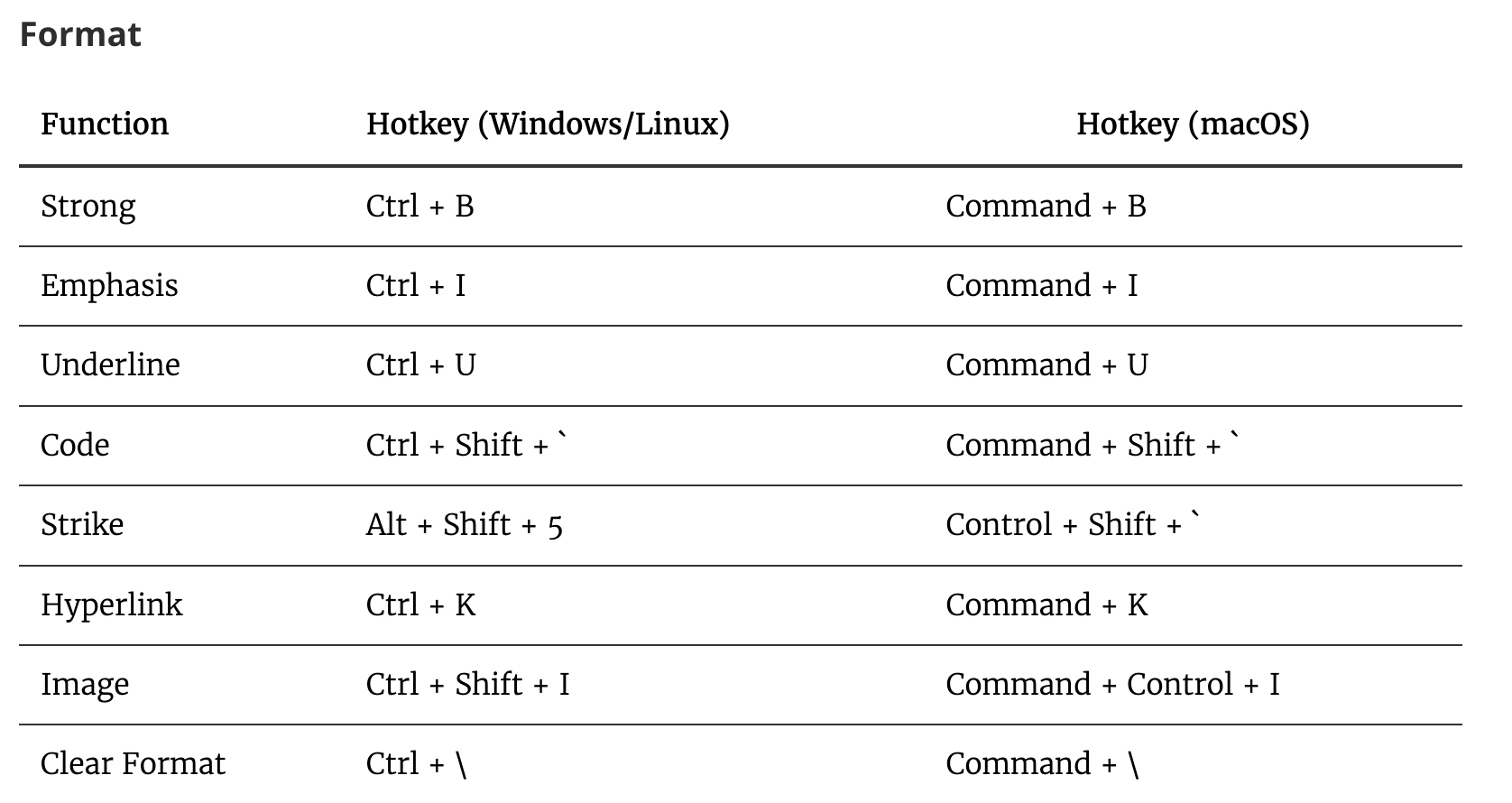




Thoughts on this case? Leave a comment, a like, or a reaction below.
comments powered by Disqus